Most of the Relm Data library is open data: a portal publishes an endpoint and Relm reads it. A few portals are different — they hold the records behind a login, show them only in a web interface, and have no data endpoint at all. FDNY's FIRES portal (fire-prevention permits and inspections for New York City) is one: it is public, but you must sign in with an NYC.ID account to search it.
Portal accounts let your organisation connect such an account once so Relm can read those sources for you.
Where it lives
Settings → Third-Party Services → Portal accounts. Two lists:
- Portals Relm knows — e.g. NYC.ID, with what it unlocks and links to the portal's sign-in and create-account pages.
- Portals added by your org — a portal Relm does not know yet. An org admin adds it with its sign-in page; anyone in the org can then connect their account.
Each portal shows the logins connected to it, their status, and Test connection.
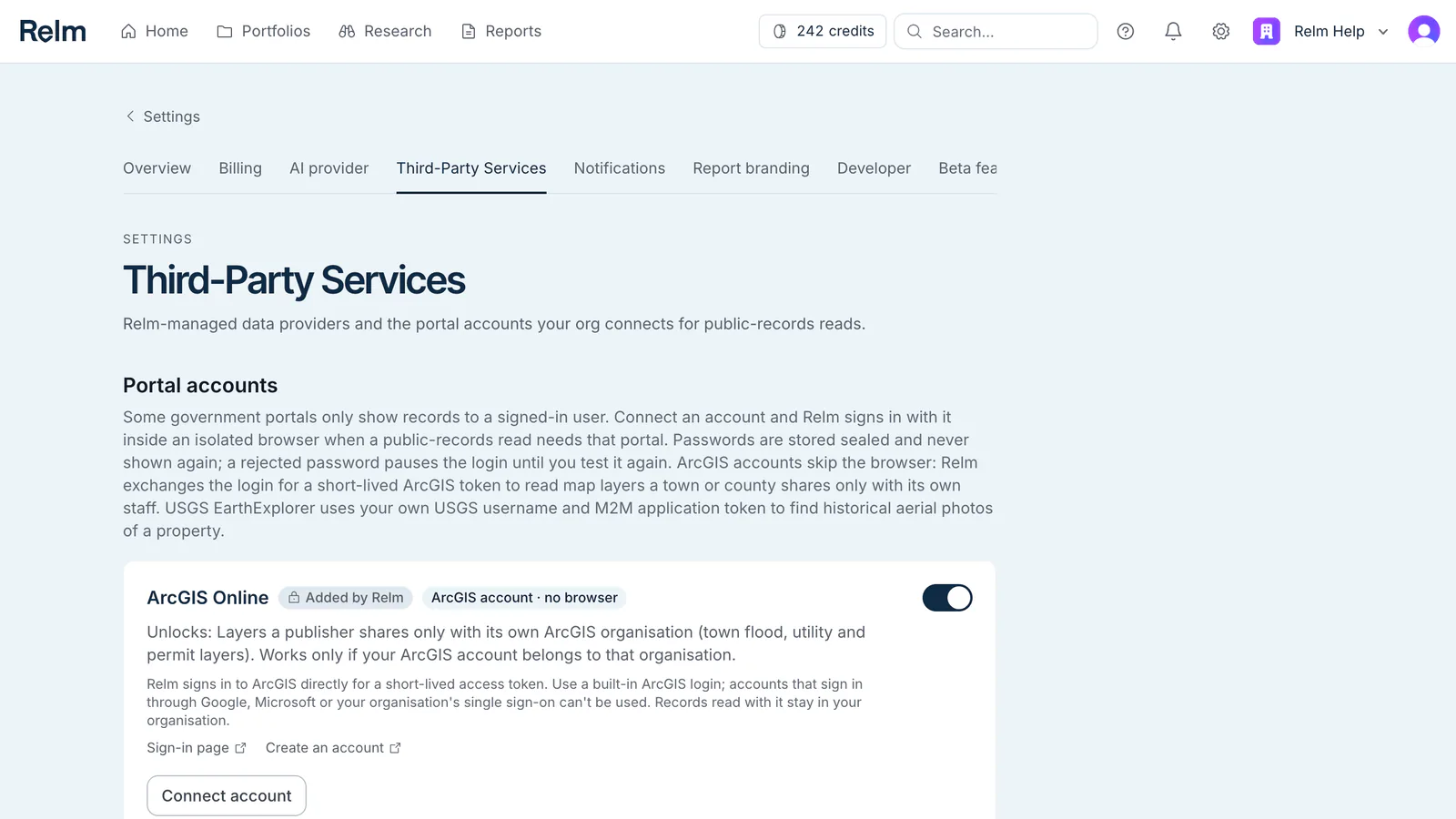
Connecting an account
- Create the account on the portal itself if you do not have one (the card links to the portal's sign-up page). Use an account without two-factor authentication — see below.
- Press Connect account, enter the username and password, and optionally say where the records are inside the portal ("Fire Prevention module → General Search by address"). That note is read by the agent after it signs in.
- Tick the consent box. You are authorising Relm to sign in with this account, on your behalf, to read public records — nothing else.
- Press Connect, then Test connection. Relm signs in once and reports the result.
Org admins can choose Everyone in the org when connecting, so one account serves every member; members' own logins are Only me.
USGS EarthExplorer (historical aerial photos)
USGS EarthExplorer sits in the same list and lets Relm find historical aerial photos of a property with your own USGS account. It signs in without a browser, through the USGS Machine-to-Machine (M2M) API, so it needs an M2M application token rather than your password:
- Create a USGS account if you do not have one (the card's Create an account link opens USGS ERS registration).
- Open Request M2M access on the card, sign in to your ERS profile and request Machine-to-Machine access. USGS reviews the request; wait for the approval email.
- On the same ERS profile, create an M2M application token and copy it.
- Back in Relm, press Connect account on USGS EarthExplorer, enter your USGS username and paste the token into M2M application token, tick the consent box and press Connect.
- Press Test connection. Connected means USGS accepted the token. If it says the account has no M2M access, finish step 2 first, then test again.
Relm exchanges the token for a USGS key that lasts two hours and reuses it until shortly before it expires. A refused token pauses the login exactly like a rejected password; create a new token if needed, disconnect, reconnect and test.
How a read uses it
When a public-records lookup matches a source that needs a login, Relm starts an isolated browser — a fresh machine with nothing else on it — signs in with the connected account, follows the "where to find it" note to the search page, searches the property's address, and reads the result table. The rows come back exactly as the portal shows them (personal details removed), cited to the portal, and are counted and charged like any other records.
If no account is connected for that portal, the source is listed in the coverage panel as needs a portal login, with a link to connect one. Nothing is fetched and nothing is charged.
Status, failures and pauses
- Connected — the last sign-in worked.
- Paused — password rejected — the portal refused the username or password. Relm stops using the login after one rejection and never retries on its own, so an account is not locked out by repeated attempts. Fix the password on the portal, then press Test connection to reinstate it.
- Two-factor not supported — the portal asked for a code. Two-factor accounts are not supported yet; use an account with only a password.
- Needs attention — the sign-in page could not be found or the portal changed. Test again; if it persists, tell us.
What is stored, and where
- The password is sealed on Relm's servers with a key that lives only in the server environment, bound to that one login. It is written once, is never shown again — not in Settings, not in the API, not in logs — and is revealed only inside the isolated browser at the moment of sign-in.
- The username, the portal, the "where to find it" note, who connected it and when, and an audit trail of sign-ins and reads are visible to the owner and to org admins.
- Disconnect deletes the sealed password, the login and its audit trail.
Relm reads only what you could read yourself, signed in, from the public search pages of the portal. It does not change anything on the portal or on the account.