An API key lets an AI assistant or your own code act on your Relm workspace. You create it once and paste it into the assistant's settings.
Where it lives
Open Settings → Developer. The API keys tab lists your keys with their access level, when each was created and when it was last used. API keys are available on paid plans; on other plans this page offers an upgrade instead.
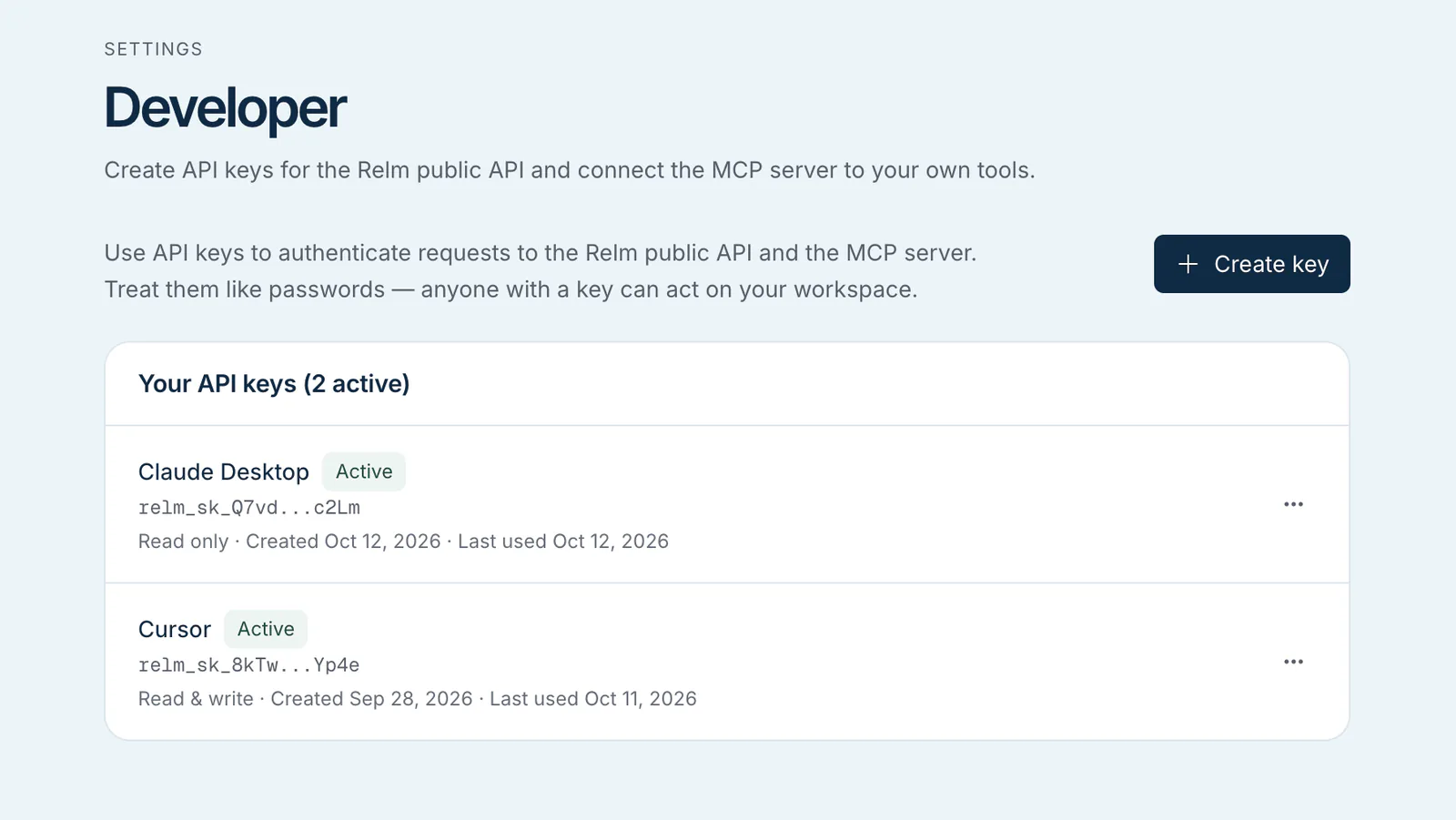
Create a key
- Select Create key.
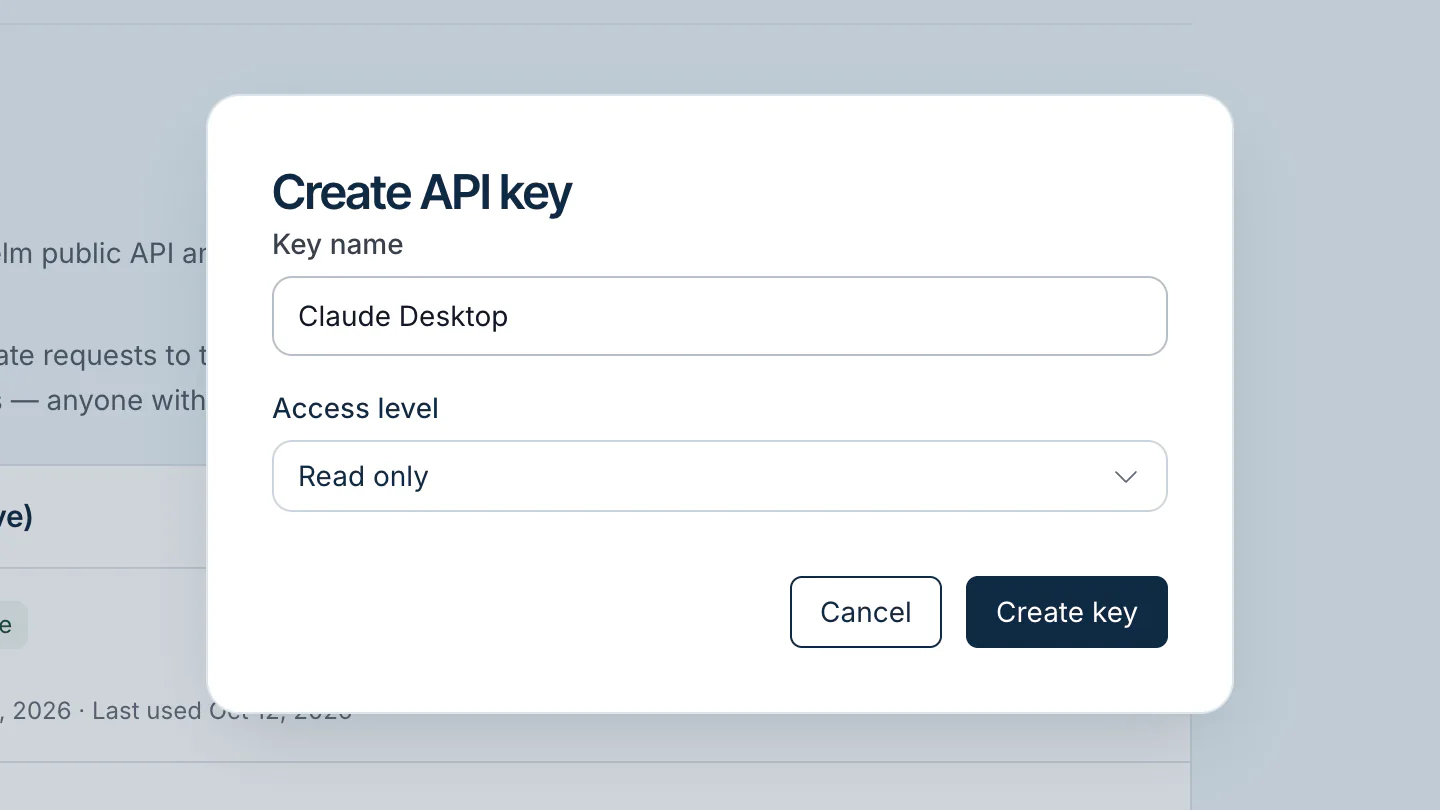
- Give it a Key name you will recognise later, such as the assistant it is for ("Claude Desktop", "VS Code").
- Choose an access level:
- Read only: search, previews and reading analysis data. It cannot start runs or make edits. Choose this for most assistants.
- Read & write: everything above, plus starting Intel Report and pro-forma runs and editing.
- Select Create key.
- Copy the key from the API key created window. It starts with
relm_sk_. It is shown only once, so store it in a password manager before you close the window.
You can have up to 10 active keys. Use one key per assistant, so you can revoke one without breaking the others.
Use the key
Every assistant needs two things:
- The server address
https://api.relm.ai/mcp/ - A header named
Authorizationwhose value isBearerfollowed by your key, for exampleBearer relm_sk_…. Keep the wordBearerand the space.
Each assistant guide shows exactly where to put them. For your own code, send the same header to https://api.relm.ai/v1; see the API reference.
Revoke a key
Open the key's actions menu in Settings → Developer and choose Revoke key. Every assistant using that key stops working at once and shows an authentication error. Create a new key and update the assistant's settings to reconnect.
Revoke a key straight away if it was pasted somewhere public, shared in a chat, or committed to a code repository.
For workspace admins
Org admins also see Organization API keys below their own. There they can view and revoke every member's keys, and use Issue for member to create a key on someone's behalf; hand the key over securely, because it is shown once. A key acts for the member it belongs to, inside your workspace only.