An Intel Report is the orchestrated set of AI agents Relm runs against a property to gather and structure the information you'd otherwise spend a week assembling by hand. It's the engine behind every section card on the property workspace.
The long-form written summary it produces is called the Property Briefing — one part of an Intel Report, not another name for it.
What it does
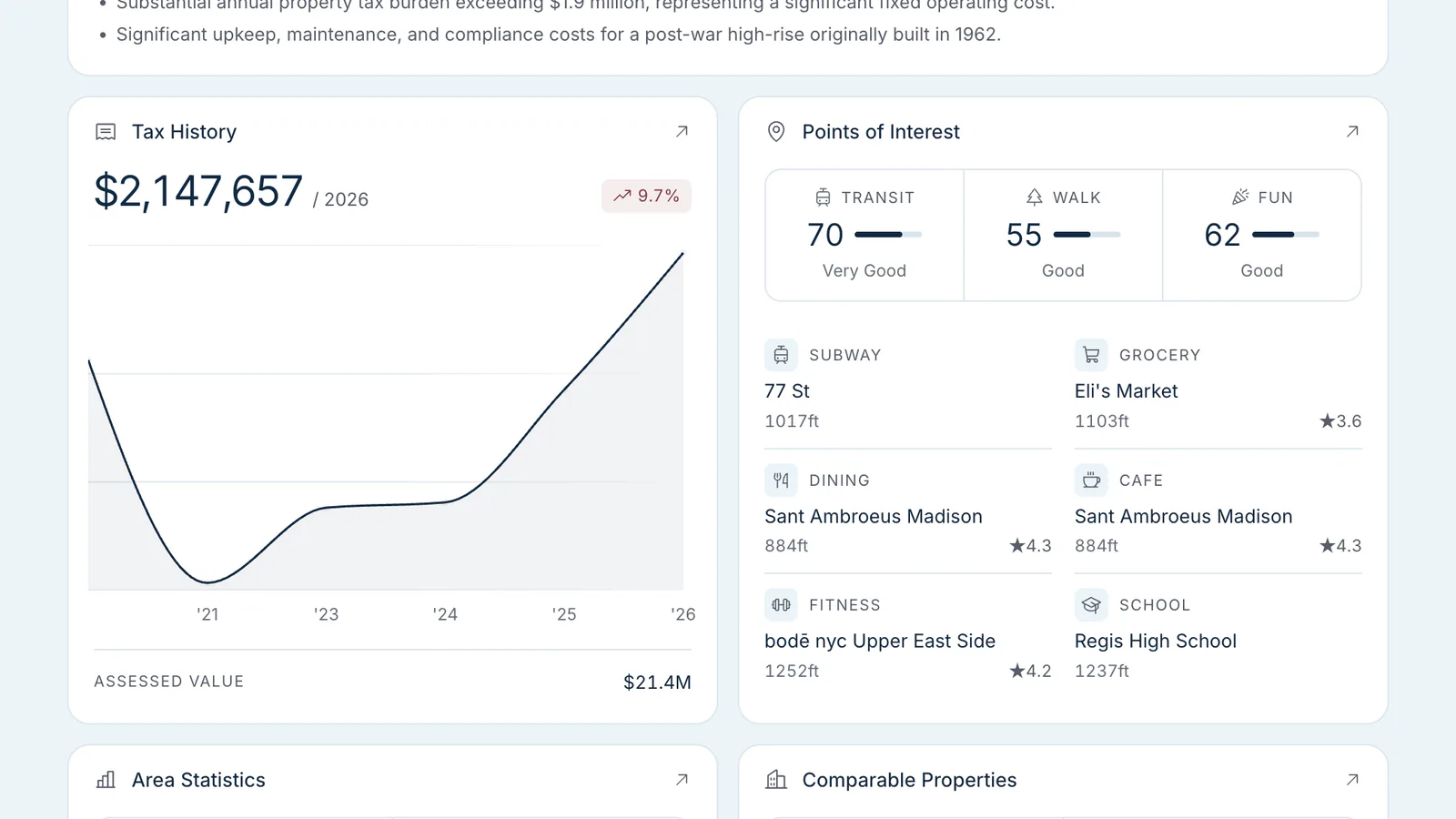
When you start an Intel Report, specialized agents research the property section by section. Basic Info, Taxes, Points of Interest, and Area Stats run in parallel first; Comps, Units, and the AI Summary follow:
- One agent goes after tax history from public records and licensed property records.
- One assembles comps from listing platforms and ranks them by similarity.
- One gathers points of interest from a maps and places API.
- One compiles demographics and area stats from federal demographic surveys.
- One builds the unit-by-unit table using an agentic crawler with independent page-fetch verification.
- Any uploaded documents are read as evidence. They're processed when you upload them, before the run starts.
- An AI Summary agent runs at the end, synthesizing everything into the executive narrative. That write-up is the Property Briefing — same artefact, two names: AI Summary is what the card is labelled in the workspace, Property Briefing is what the finished narrative is called.
- The 10-year pro-forma is built by a separate Financial run. It starts automatically when the research sections finish only if you tick Run Financial Analysis automatically when Intel Report finishes — it's off unless you turn it on, and Relm remembers your choice. Otherwise, start it from the Financial card with Generate Pro-Forma.
Each agent writes its results into the property with citations attached. As each section finishes, its card switches from Analyzing to a green check; sections still waiting their turn show Pending.
How long it takes
A typical Intel Report run is 5–10 minutes for a multifamily property in a major metro. Tertiary markets, asset classes with thinner data coverage (industrial, certain retail), or properties with very large rent rolls (1000+ units) can take longer. When financials auto-run (or you start them yourself), pro-forma generation adds another 7–20 minutes.
What you can do during a run
- Leave the page — the run continues server-side. You can come back to a fully-populated workspace.
- Read other sections — already-completed sections are fully interactive while later sections are still running.
- Use the chat panel — your message is held and answered as soon as research finishes (on a section's own page, as soon as that section is done).
- Stop a section — click the stop icon on any section card that's analyzing, then confirm Stop.
- Stop the whole run — click Stop Research in the property header. (Cancel All, next to it, stops every analysis running in your organization — not just this property.)
Wait for a section to finish before editing it — when its agent finishes, it writes its results over the section. The pro-forma can't be edited while it's generating.
Re-running
You can re-run any individual section from its page, or the whole property with Rerun Intel Report in the property header. A re-run replaces that section's researched data with fresh results, so re-check any values you corrected by hand. Re-runs use credits — see Per-section reruns.
Re-running research doesn't re-run the pro-forma on its own. To rebuild the pro-forma, use Re-Run Analysis on the Financial page, or tick Run Financial Analysis when done when you rerun an Intel Report. Either way, the new pro-forma replaces the current one — including values you edited — and each pro-forma run uses credits.
When to run it
Recommended patterns:
- Preview, then add. Search an address on
/dash, confirm it's the right building on the free address preview (a map pinned to the address), then click Add to Portfolio when you want a full workspace. - Address only. Add a property by address, click Run Intel Report, and watch it populate. Tick the auto-run box first if you want the pro-forma to follow automatically. Fastest for top-of-funnel screening.
- Documents first, then research. Add the property, upload your rent roll/OM/P&L, then run the Intel Report. If documents are still processing, the button reads Queue Intel Report and the run starts as soon as they're ready. Documents are picked up as a primary source — the rent roll wins on units, the P&L feeds expense baselines, the OM contributes context to the AI Summary.
On Enterprise plans you can also pick the AI provider — Google Gemini, Anthropic Claude, or OpenAI GPT — from the Run Intel Report dropdown for a single run, or set a default in Settings → AI provider. Self-Serve runs on Google Gemini.